
Linux Basic Commands: This will help you the basic concepts about the Linux Command Line, Terminal, and commands that run on the terminal and then you will be able to do everything using the terminal.


See the image for detail. This will more clear the things to you.


Json data insertion into mysql...!
This Post Was Last Updated On September 30, 2016, By Author: Mahira Khan.
Linux Basic Commands Overview:
Before the windows operating systems mean GUI base systems, people were using and controlling the computer systems by the punch cards, that is the set of commands in the card and run the commands. After that, the command prompt is the one that the people were using for controlling the computer system either for copying the file, deletion of files, run or execute some program file they use the command prompt for each and every purpose. After that, the Microsoft launch the windows Operating system that is totally graphical user interface based. In Linux versions, there is also few graphical user interface operating systems that do the most of the work using graphical user interface but the terminal is more powerful.Linux Basic Commands:
how can we "List Files" using Terminal:
When we open the terminal the current folder is the path in the terminal, If we want to show the list of folder and files listed in them then we can show files ls command and get more detail by adding more parameters to the command. Like ls -t is used for the list of file sorted by time, ls -S will sort the file by file size, and ls -r will show the reverse of the order.
How can we "Change Directories" using Terminal:
If you want to change the directories mean the move from one folder to another folder then we can use the "cd" command and ".." folder. By using these we can move up to the directory and move ahead to the directory structure. There are two types of commands one relative path and other is an absolute path. When we type the following command it switches to the directory directly above the current one folder.
cd ..
Absolute command means that in current directory have the folder name documents then we can go into by typing the following command.
cd DocumentsWe can show the current directory full path from root directory to the current directory by writing the following command
cd -See the image below that will explain you more detail about it.

How can we "create or remove folders" using Terminal:
In Linux / Unix we can create the folders from Graphical User Interface but here we are teaching you the terminal. So we can create new folders and we can remove new folders. For creating the new folder with the user defined name, the command is
mkdir my_test_folderWe can now remove the folder that is just created by the command and can be removed by the command only is there is no data inside the folder.
rmdir my_test_folderYou will have to remove / delete those files that are inside the folder and then you will be able to delete the folder.
See the image for detail. This will more clear the things to you.

How can we "Create and remove files" using Terminal:
This is the simple one to create and remove the file using Linux / Ubuntu Terminal. It uses the following command.
touch test_file
to create the new, blank file and same for deleting the filing process is same write the command that is
rm test_file
Here we can delete the all files at once by using the "*" in the parameter that will delete all files. The command is:
rm *
Now if someone wants to delete all the files and sub files in the folders / directories he can use the -r parameter that means recursive(re-run) and sometimes the system does not allow the user to delete the file then you can use -f that means force the operation.
rm -f test_fileSee the image for detail. This will more clear the things to you.

How can we "Edit Plain Text Files" using Terminal:
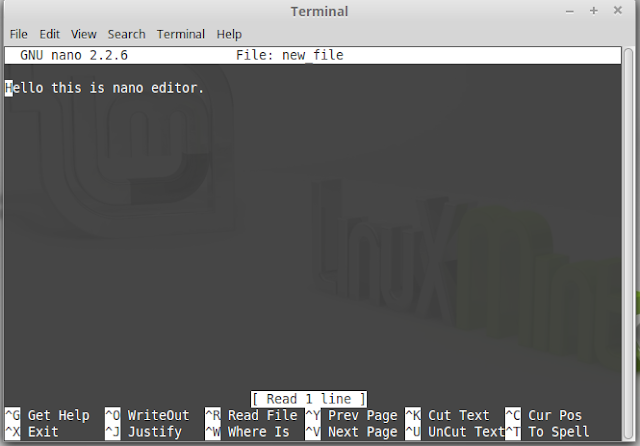
Actually, the users use the different editor for editing the text files in the Linux / Ubuntu operating systems. So for beginners, the simplest one is to edit text files using nano command. The command is:nano test_filesThis will open the nano file editor then you will type the context and press ctrl + x it will say you for save the files press enter button. See the image for detail. This will more clear the things to you.

You can edit your text file in vim by using the following command.
vi new_file
How can we "Display files" using terminal:
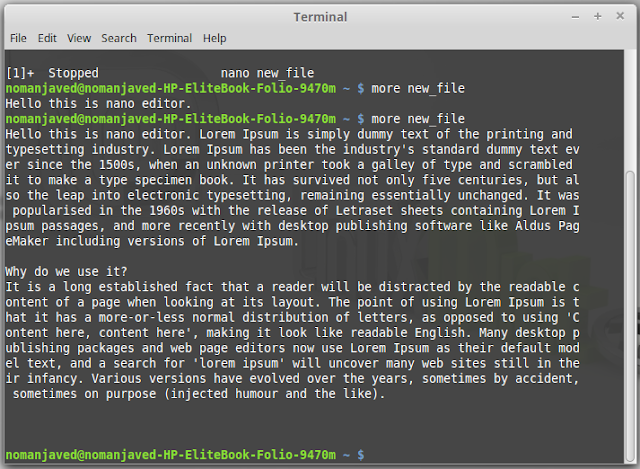
When we create the text file that may have more text and we want to show more text in the terminal while opening the file so we can view more data in the file. For that purpose, we use the command
more new_fileSee the image for detail. This will more clear the things to you.

How can we "Use History" using Terminal:
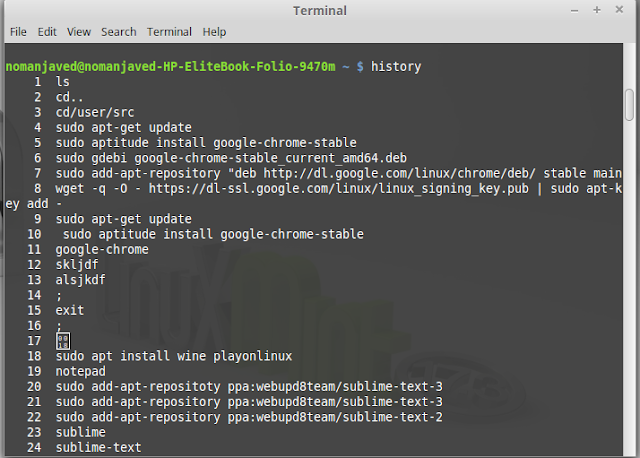
The history is one of the most important and amazing factors in the terminal that it is saving your commands in the history so that when you want to see that you can access that by the history commands. The command is just written history in the terminal.
historySee the image for detail. This will more clear the things to you.

How can we "Find Files" using Terminal:
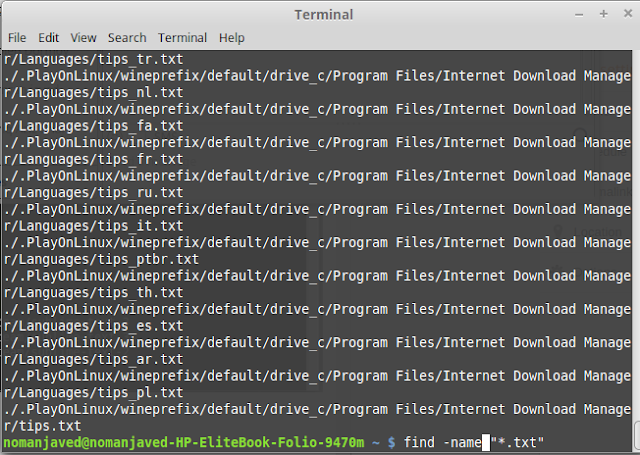
For finding any file directory the find in Linux / Ubuntu is the very powerful command that finds on your system. For Example: if you need to find all the files that are with the .txt extension then you can use the following command.
find . -name "*.txt"

How can we "Find a Text String in Files" using Terminal:
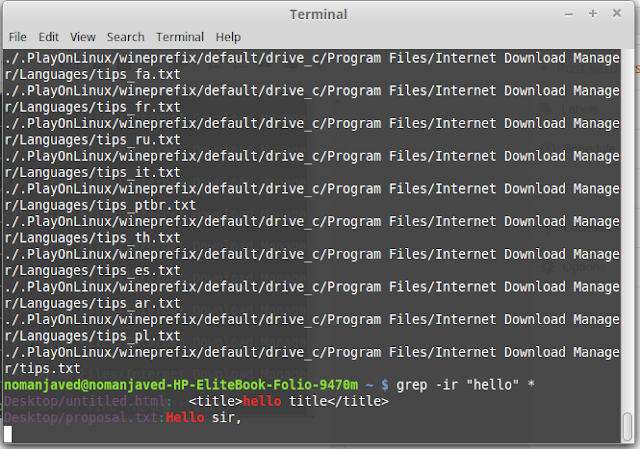
Finding text in the files directories and sub-directories the Grep is the command that will search the text that you want to search. The command will search for all files. The command is
grep -ir "hello" *See the image for detail. This will more clear the things to you.

Moving files from one folder to another you can use the "mv" is used and for copying of file "cp" is used. See example Hope you understand now most of the things.
mv image imagefolderIf you still have any problem, query then you can ask here directly we will response you quickly. You can search with these queries Linux basic commands with examples pdf, Linux tutorial, Linux basic commands pdf, Linux basic commands with examples, Linux basic commands tutorial, red hat linux basic commands pdf, linux basic commands ppt, linux basic commands with examples ppt and much more for learning material. You can further read about json data insertion.
cp image ../
Json data insertion into mysql...!
This Post Was Last Updated On September 30, 2016, By Author: Mahira Khan.


